Tracking
What is tracking?
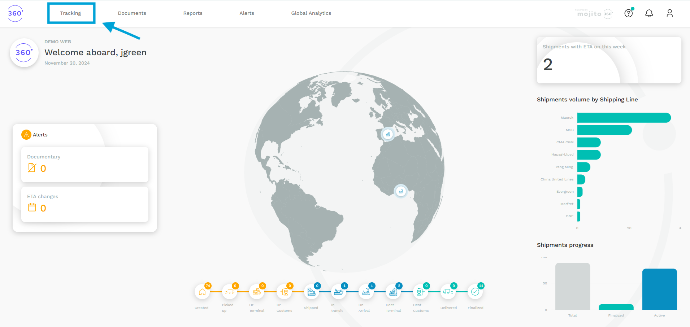
The tracking index is the area of Mojito360 from where you can see the status of your shipments. On the tracking screen you will find several areas:
- Search bar
- List of shipments in chart form
Chart settings
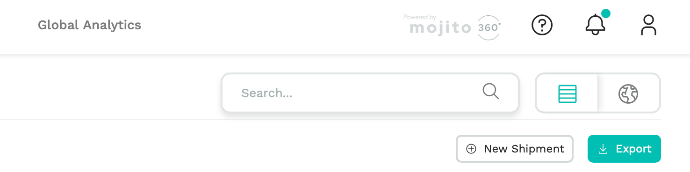
What is the search bar for?
When you write any reference term (container number, customer reference, forwarder, etc.), the shipments that contains those terms will appear.
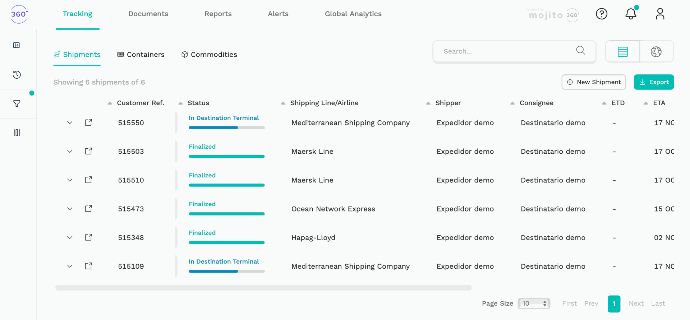
List of your shipments
Next to the search bar you can see two tabs: Shipping and Container. By clicking on any of them, Mojito360 will show you a list of the category you have selected.

SHIPMENT:
If you select the “Shipping” tab, you will see a chart with all the selected shipments, and a summary of the shipping characteristics, customer reference, shipment status...
Next to each shipment, you will see a square-shaped icon.

By pressing it, Mojito360 takes you to the booking detail where you can see all the information about your shipment from when it was created until its departure from the destination port.
CONTAINER:
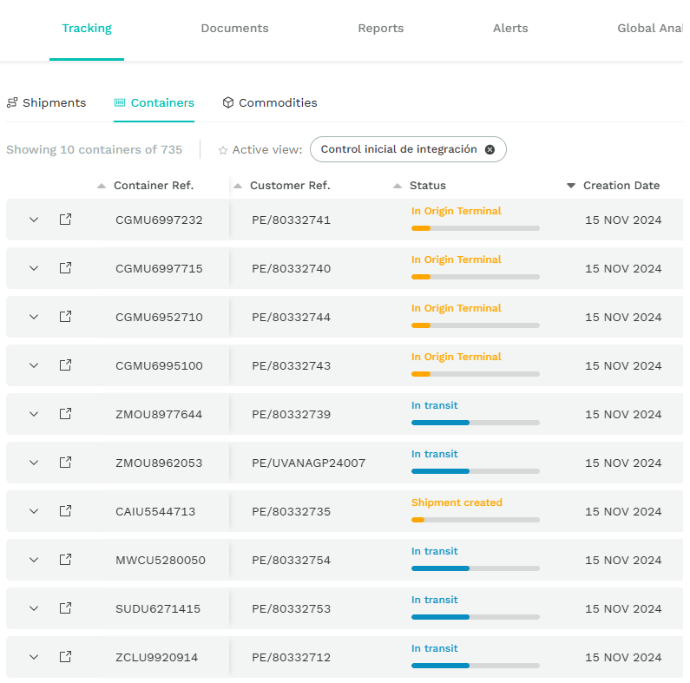
If you click on “Container”, you can see a list with all the containers of your shipments and detailed information about them.
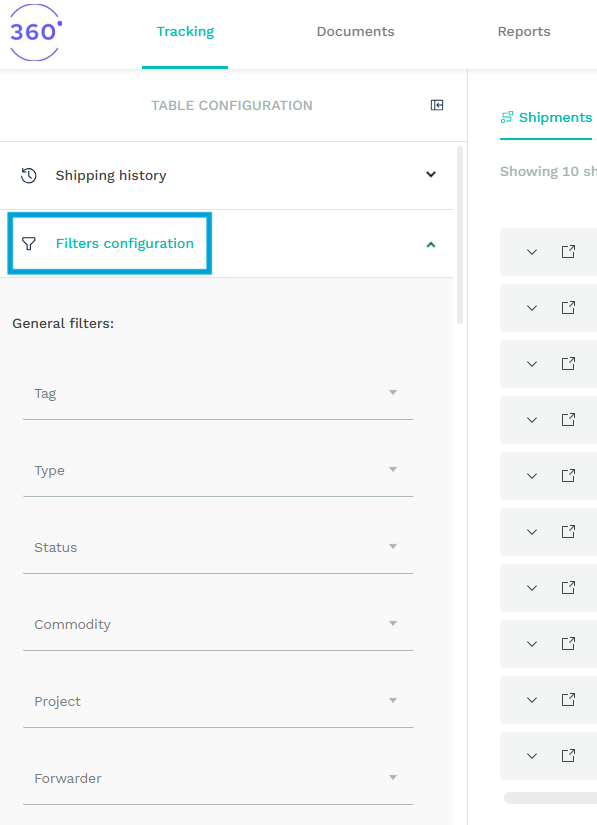
How can filters help me?
On the left side of the tracking you will have the filters where you can choose from the status of the shipment to the destination terminal, including forwarder and other shipment data to be able to filter the information you want to know about your shipments.
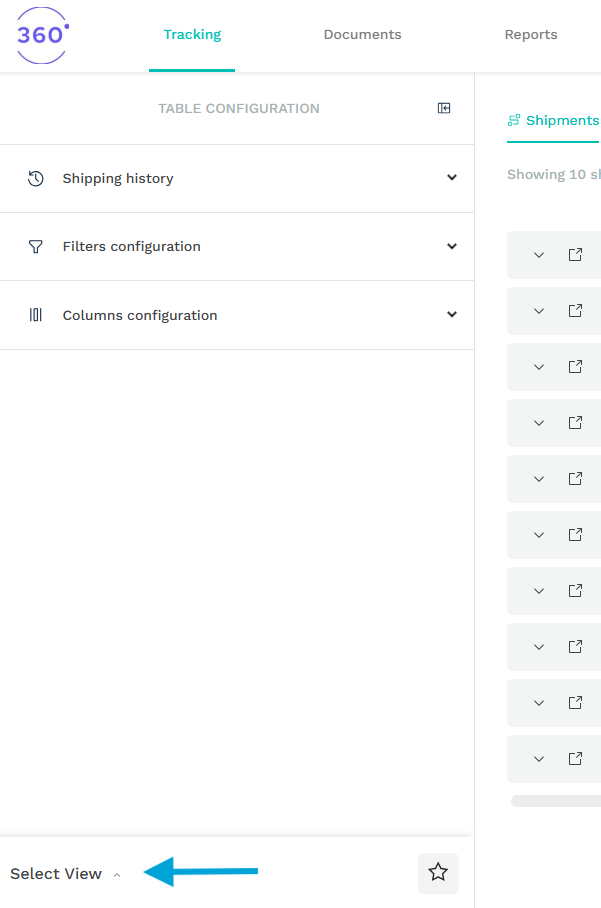
Can I set up my own tracking view?
On the left side of the tracking view is the configuration drop-down menu. You can select all the columns you want to appear in the tracking and save that view to always have it available.
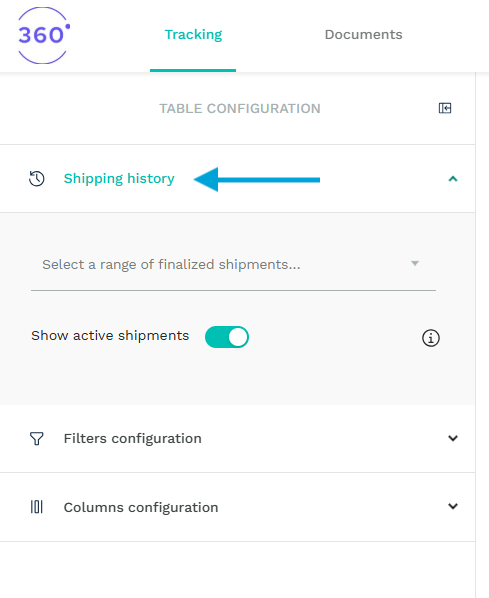
Shipping history
By default, Mojito360 only shows shipments completed in a maximum of 30 days, however, you can select all completed shipments.
On the left side of the tracking, in the shipment history menu you can select a range of shipments from 30 to all shipments.
Can I download that view in Excel?
Of course, you can download the view you currently have with all the filters in Excel in case you need to do a report quickly.
To do this you just have to click on the export button at the top right.
Booking detail
What is the Booking detail?
It's the screen that shows you in detail all the information related to your shipments.
To access it, click on the “Tracking” tab on the main page or home.
Once inside, you will see a list with information about all your shipments.
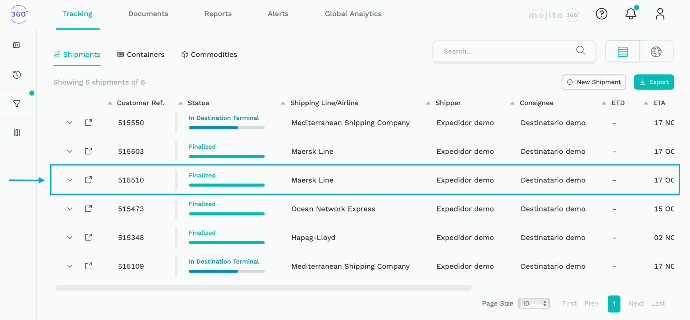
Here you can click on the shipment you want to see, much more detailed information about its status and a tracking map.
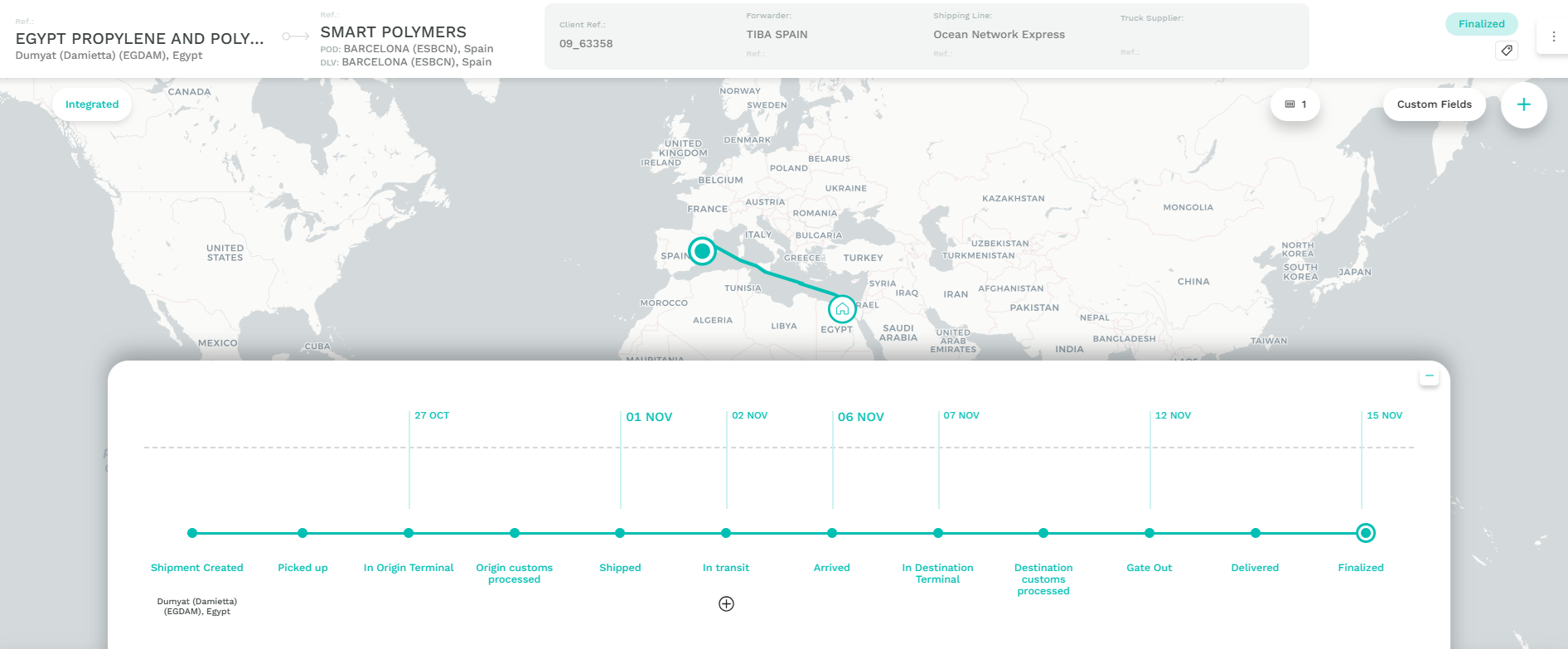
What information can I find in the booking detail?
In the top bar, you will find:
- The name of the IMPORTER
- The EXPORTER
- CUSTOMER REFERENCE
- The FORWARDER
- CARRIER
- Truck supplier
- Delivery Status.

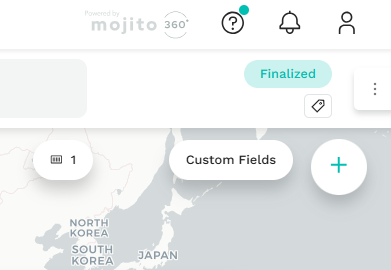
The + button:
In the “+” button, it'll display very detailed information about your merchandise, its reference, the shipping company that transports it, etc.
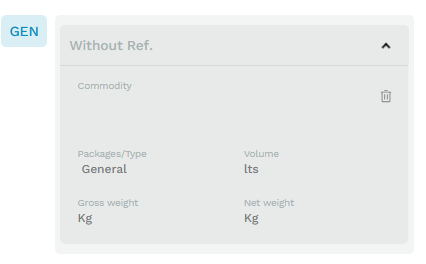
In a single glance, you will see clearly:
- The project – customs broker – Reference customs broker
- Transport details
- Merchandise details
- Shipping containers.

If you click on the trash can in the shipping containers, you can delete one or more containers from that shipment and you will no longer receive information about them.
The three dots button:
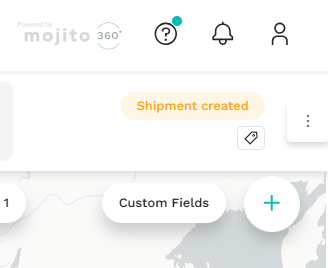
In this button, options are displayed that you can set up or modify in your shipment.
*These options are hold to the assignment of permits that we initially grant to your user, so you may see more or fewer configuration options.
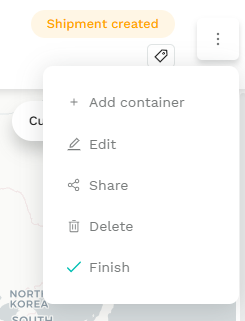
If you click on “Edit”, you can manually modify any information about your shipment.
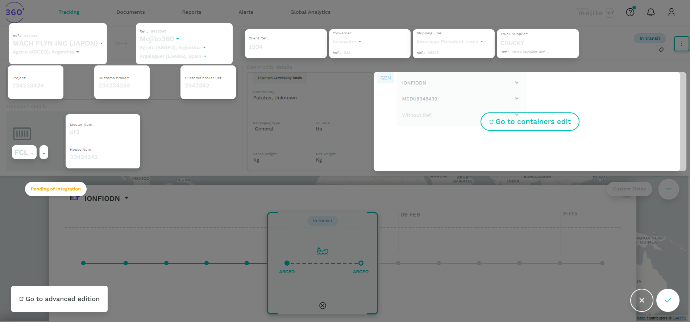
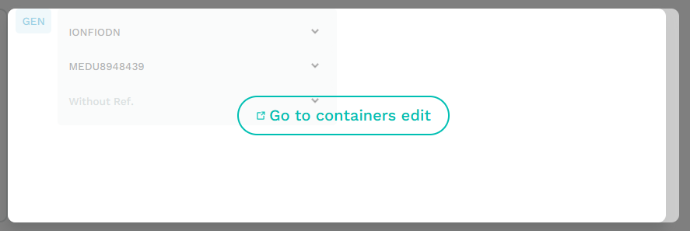
If you click on “Go to container editing”, you will be able to modify the information of the specific container you choose.
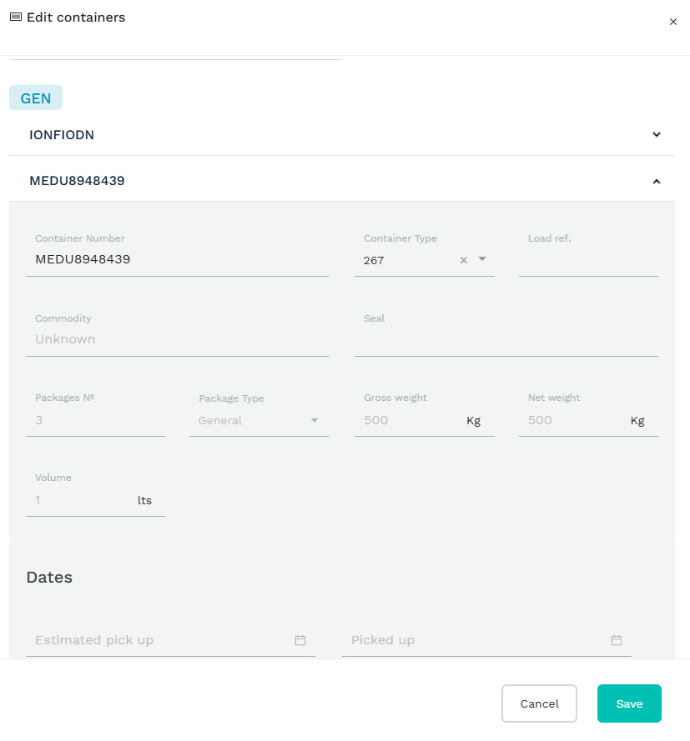
Finally, by clicking on “Cancel” or “Save”, you will discard the changes made or they will be saved.
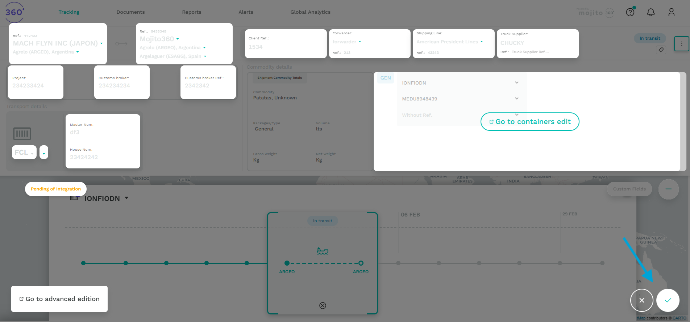
Once you have made all the changes that interest you, in the lower right corner of the screen you will see two circles, one with an X and the other with a confirmation tick.
By clicking on them, you will save all the changes you have made to the data or leave them as they were.
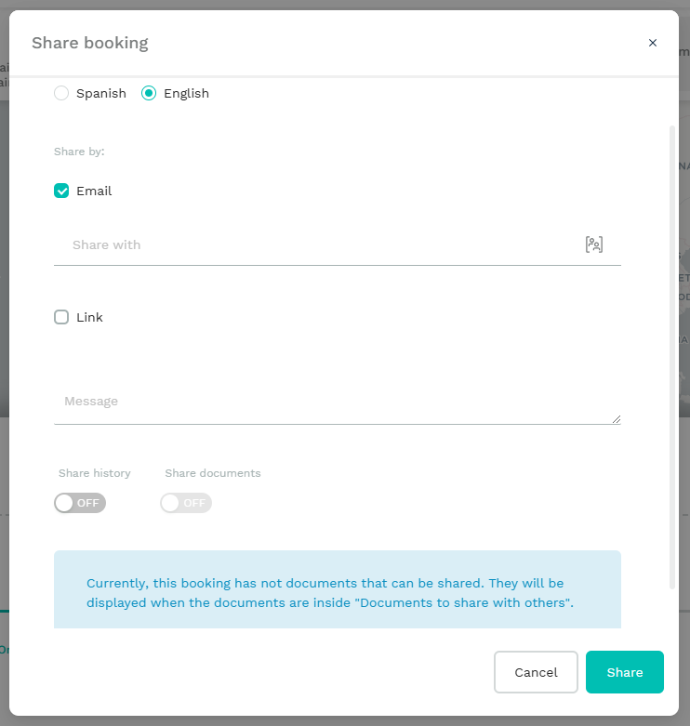
If you click on the “share” option, you can add one or more emails with which to share the entire shipping booking and also choose in which language to do it.
Remember that you don't need to add the email with which you are registered in Mojito360 because whoever you send it to, you will always receive a copy.
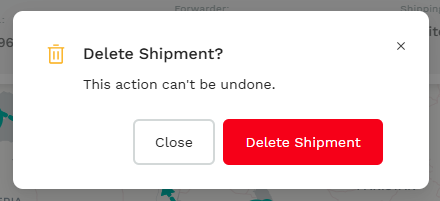
And finally, if you want to delete the shipment directly, click on “Delete” and you will never hear from it again.
What do I see when I open the booking detail?
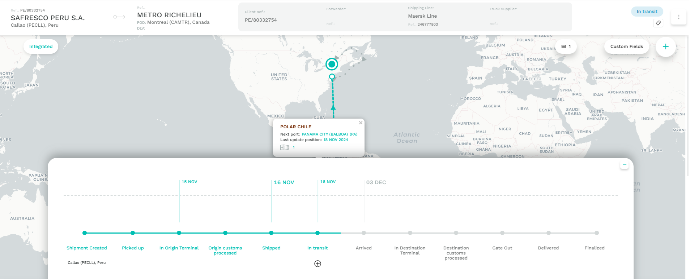
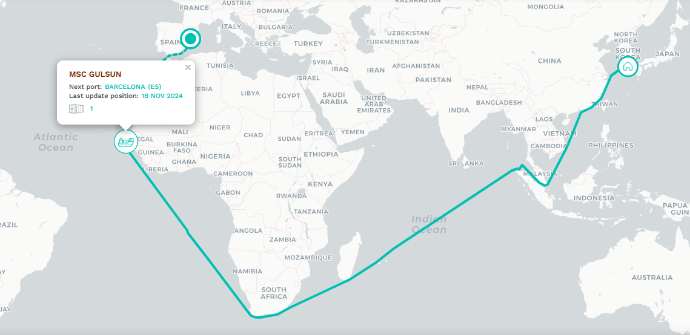
Once opened, you will see a map with the route traced and tracking information for your shipment.
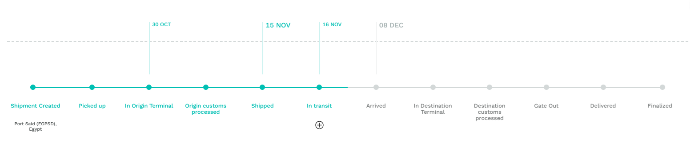
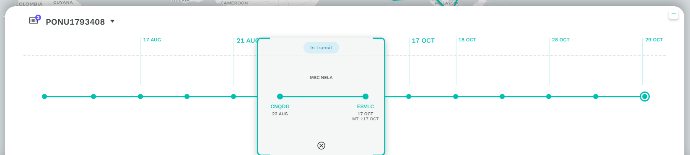
What does the timeline show me?
On the timeline you can see exactly which points on the route your shipment has already passed and what it has left to finish, with past and future dates, so that you know where your merchandise is at all times.
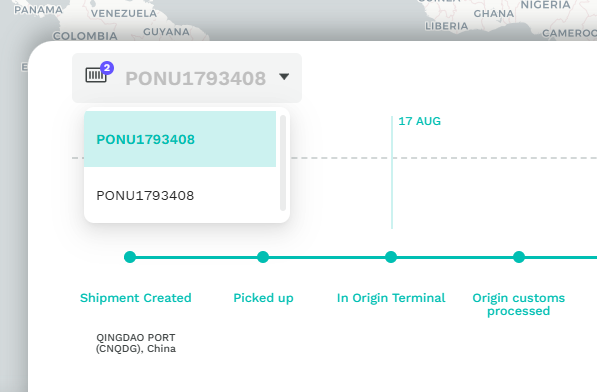
If you click on the button at the top of the container reference, you will see the list of all the containers in the shipment. With this, you can choose to see the timeline of a specific one.
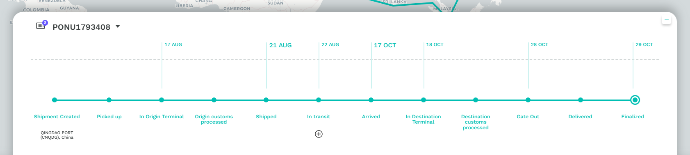
By clicking on the “+”, you see the information on container transfers in detail.
 What else can I see in the booking detail tab?
If you go down a little, on this screen you can also see “Documentation”, “History” and “Comments”.
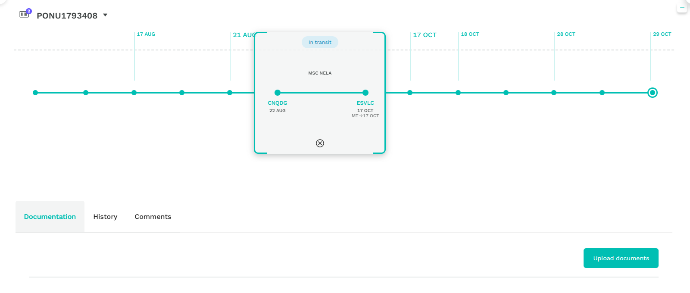
What is “Documentation” for?
In this section, you can upload all the files related to your shipment and access them whenever you want.
This option will be very convenient for you to easily check if you have everything you need or if you want us to notify you if any are missing.
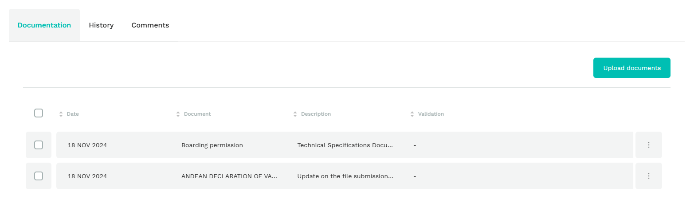
Uploading your documents is very simple.
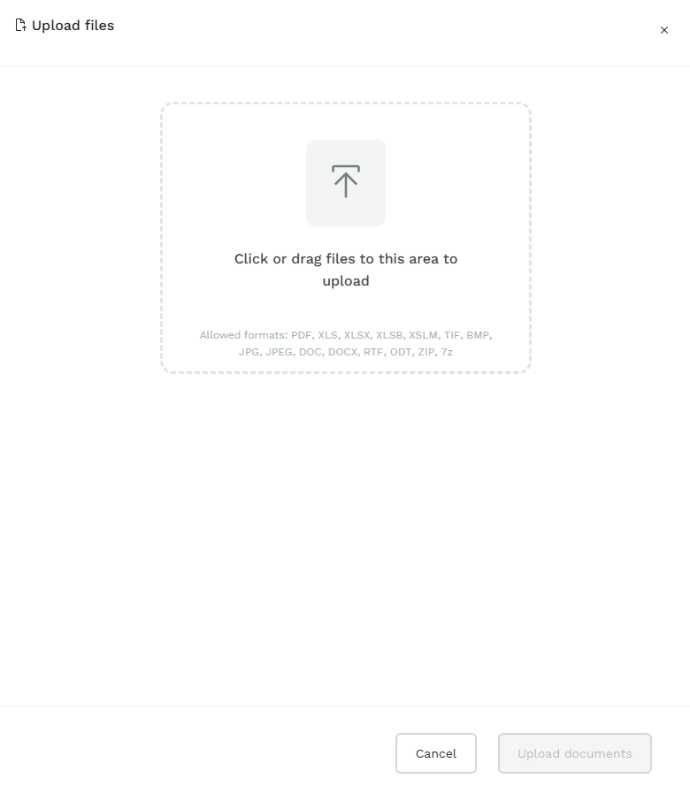
You just have to click “upload files” and a box will appear asking you to drag them or search for the files on your computer manually. They will be uploaded automatically and from that moment on, you can access them whenever you want in this tab.

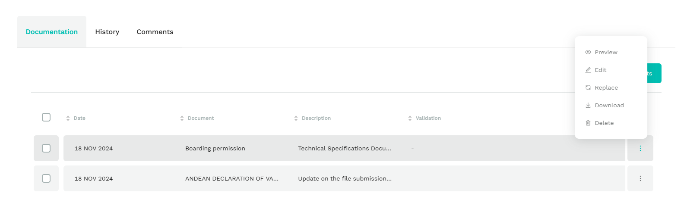
Within an uploaded document, if you click on the “list button” you can:
Edit the document
Delete the document
Preview the document
Download the document
Update the document

 What information does the history give me?
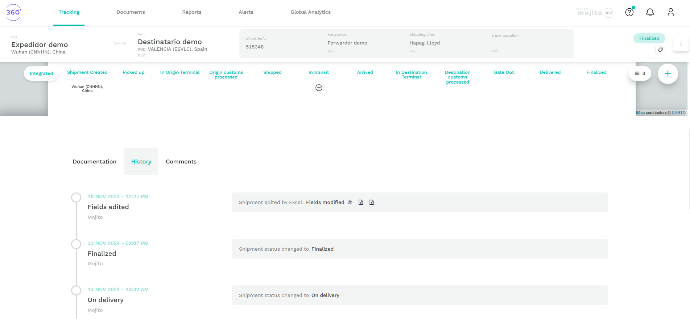
In this tab you can see the dates on which shipping information have been manually modified and it shows you which user made these changes.
Documents
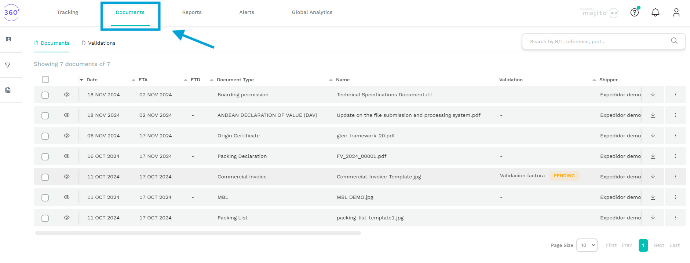
Documents, what are they for?
One of the modules that Mojito360 offers is documents.
Here you will find all the documents that you upload regarding your shipments.
Can I search for specific documents?
In the search bar you can search for any document by typing any term in the search bar with which that document has been named.
Can I filter the documents?
YES.
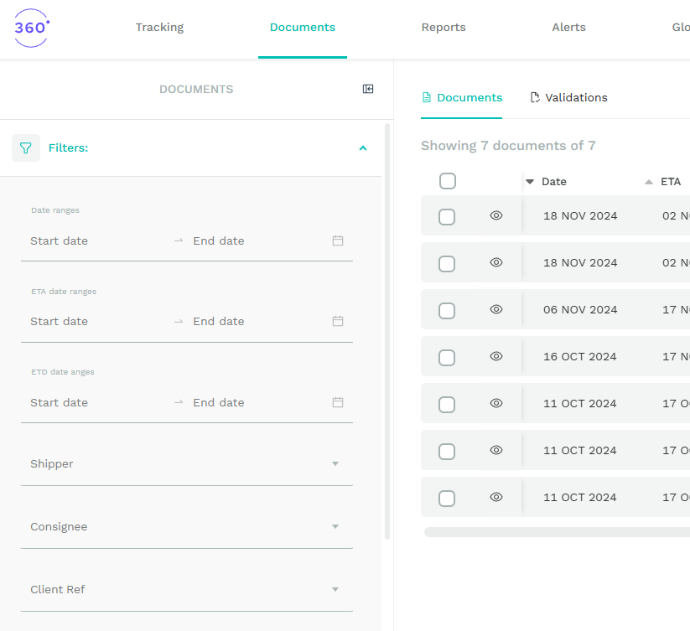
Just like in the tracking module on the left side of the page you will see the different filters that exist to be able to filter the documents the way you want.
Can I view the documents?
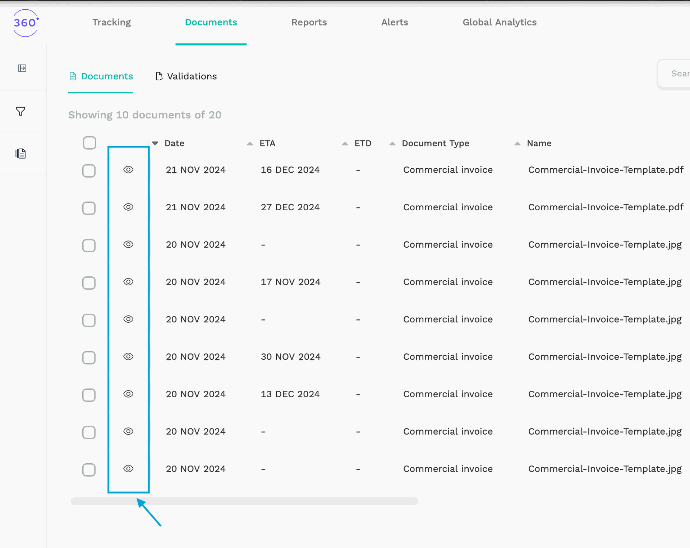
Without having to download the documents, from Mojito360 you have the possibility of viewing the documents. For them you just have to click on the eye that appears next to the document.
Can I download the documents?
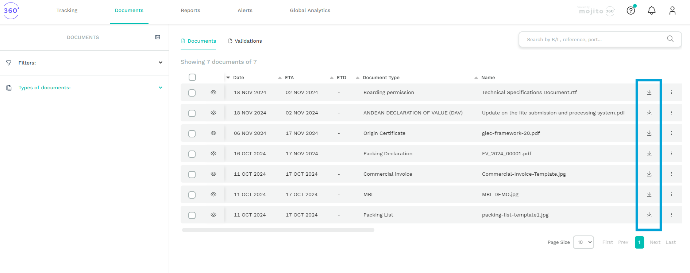
Right next to the preview button you have the button to download the document.
You can download it both in the original format that was uploaded or in PDF format that is generated by Mojito360.
Can I download more than 1 at a time?
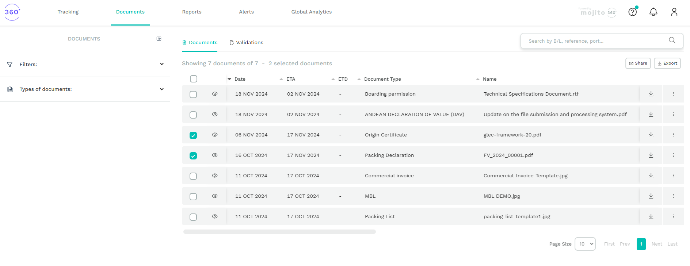
Of course, you just have to select the documents you want in the box to the right of the document and then in the download symbol located at the bottom right.
Can I share the documents with other people?
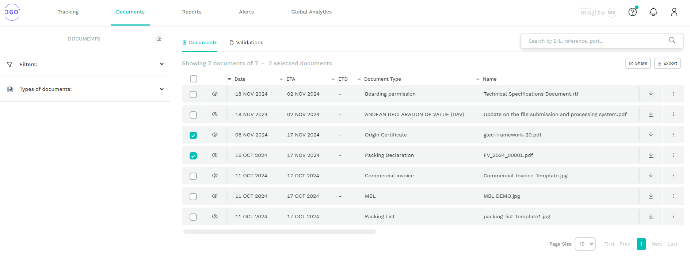
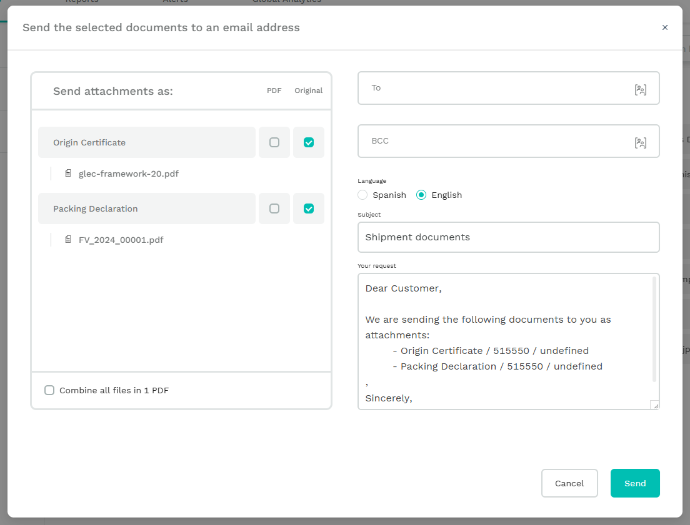
You can send an email with the documents you select to the accounts you want.
To do this you just have to select the documents and click on the envelope button that you will find just above the download button.
On the screen that appears you can modify the email that will be sent.
- You can select how to attach the documents (separately or combined into 1 pdf file).
- Choose who to send the email to with the documents. There is a difference between “To” and “BCC”. In “To” an email will be sent to all the accounts that are in that field where an email conversation can be created with all the accounts. And in “BCC” a separate email will be sent to each of the accounts that are in that field.
- By default there is a default message subject and body that you can modify without problem.
Reports
Reports, what are they?
It is a detailed report of the data displayed in Mojito360.
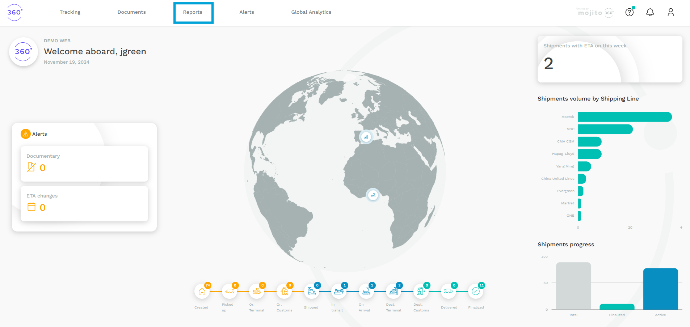
To access the reports menu, click on the “Reports” tab on the main page or home.
Reports, scheduled or punctual?
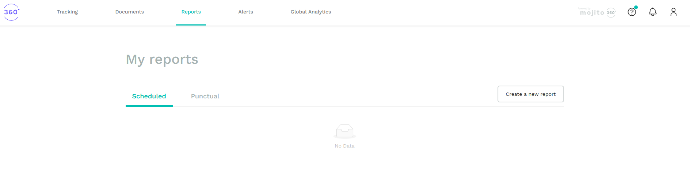
Within the reports, you can choose between two modes.
You have the option to schedule the report so that it's sent on the days and times you choose directly to your email or to the email address you indicate. Or, choose the specific report, with which you will receive the information immediately and only once.
How is the report configured?
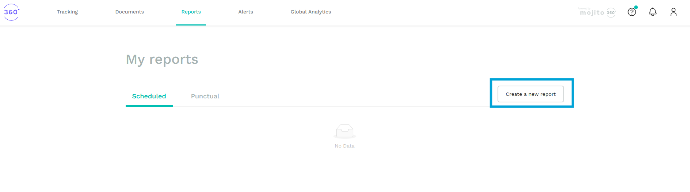
By accessing “Create new report”, you can configure the columns that you will have visible and the layout that is most comfortable for you. You can also name them of your choice, so that it is easier for you to understand the data you are interested in consulting.
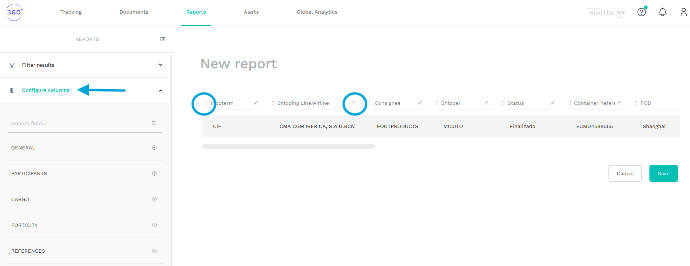
To be able to configure the columns and sort them:
- In the left menu you can select the columns.
- If what you want is to change the arrangement of the columns, click on the 6 points that you will see in the following image and order them as you prefer.
- To rename the column, click the pencil next to the title you want to change.
How do I filter the reports?
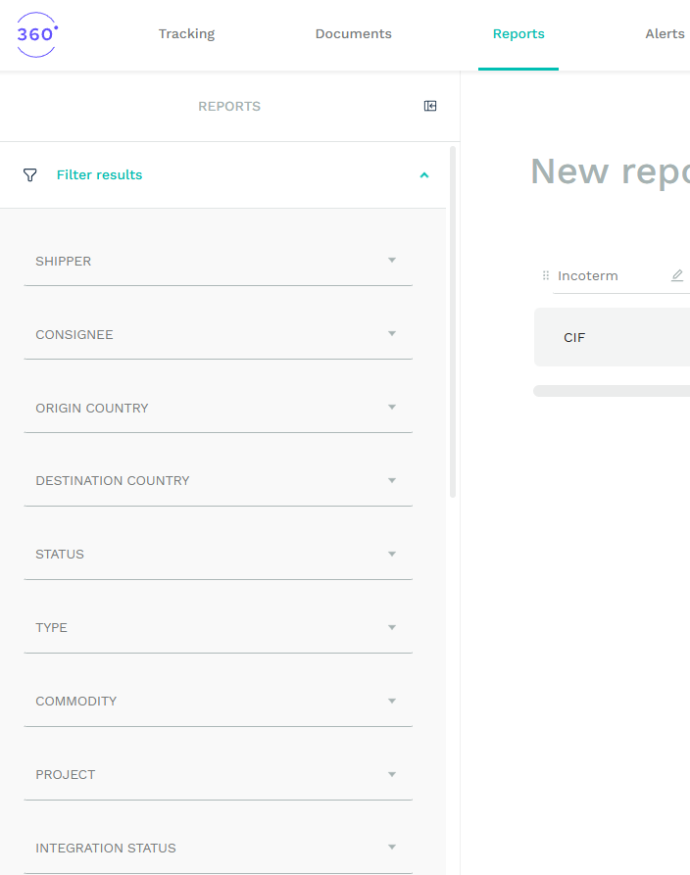
You can filter the shipments that will appear in your report according to your interests.
So you can, for example, create reports for clients, which will be very useful if you want to keep your client informed of the status of their order. You can also filter by projects, etc.
In the left column, you can view and choose filters.
Grouping by shipment vs grouping by container. Which one suits me?
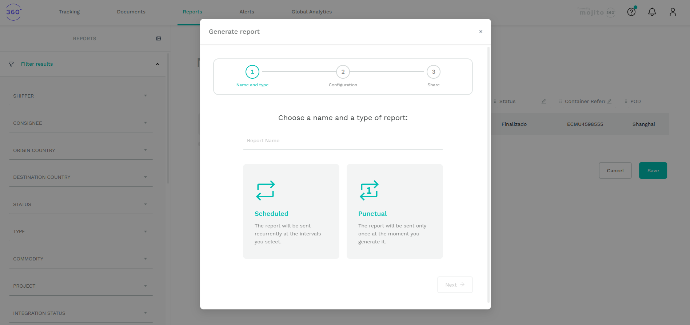
When you have arranged the columns to your liking, click “save” and you will automatically access configuring the grouping of the report. You can group your report by container or by shipment.
In this step, you must name the report and choose which grouping you are interested in seeing, what you prefer the report to be based on, whether ETD/ETA or just ETD or ETA, as well as select the period in which you will receive it.
* If you choose a custom period, you will not be able to schedule the sending of the report.
What is the difference between grouping the report by container or by shipment?
If you choose to group it by container, the report that is generated is differentiated for each container in the shipment, showing a different container in each line.
If you choose grouping by shipment, the report will focus on the customer reference and the containers will appear concatenated.
Can I preview my report before saving it?
Yes, once you have created the report, it will appear in the “reports” tab and from there you can preview the final result that you will receive in the email that you chose at the beginning of the configuration.
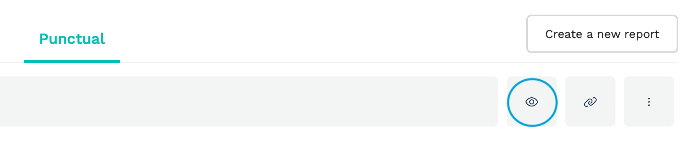
Within this tab you have several interesting options:
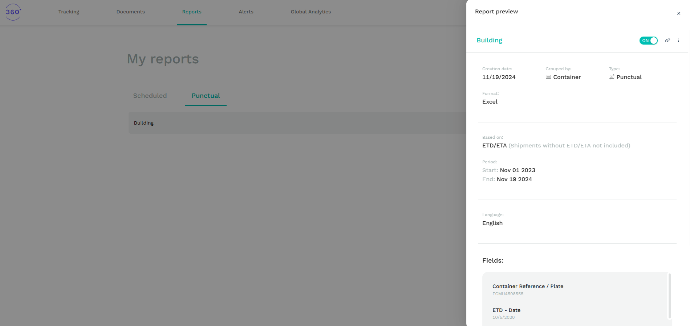
- Preview
With this option you can see how your report turned out after configuring it yourself in a quick and easy way.
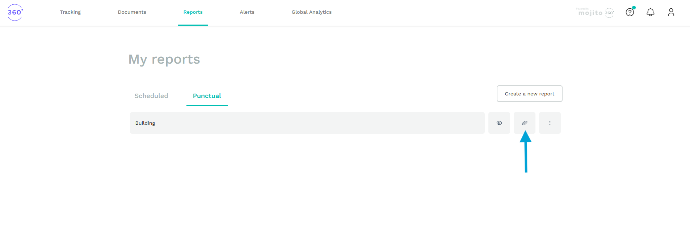
- Copy URL
When you copy the url of the report, a link is generated that can be very useful to enrich any document you have created in your data managers (PowerBi, Excel, etc.).
This way you will directly access your report every time you click on that link.
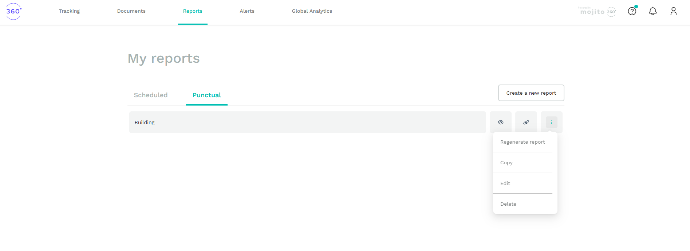
More options:
By clicking on the 3 dots that you will see on the far right, you can copy the columns and filters from your report to use them as a template in other reports that you want to create.
This way you can modify or create any configuration without disturbing the report you have already generated.
In this option, you can also “Edit the existing report.” to make any changes that did not convince you when previewing it or directly, “Delete the report”.
Alerts
What can I use Alerts for?
Alerts are used to inform you of any changes in the evolution of your shipments.
This way you can focus on what's important.
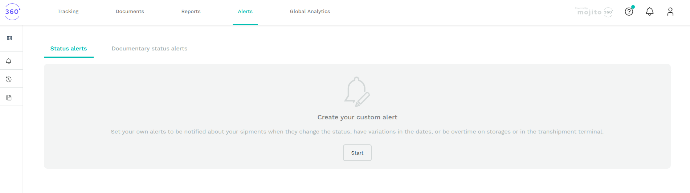
How do I set up alerts?
To set up alerts, click on the alerts tab on the Mojito360 home page and create a new alert based on your interests or needs.
You can apply different filters to all alerts to narrow down the data you want to be most aware of.
If you do not apply any type of filter, the alerts will affect all the shipments that you have active at that moment.
What alerts can I set up in Mojito360?
From the “Alerts” section, you can configure 4 different styles of alerts:
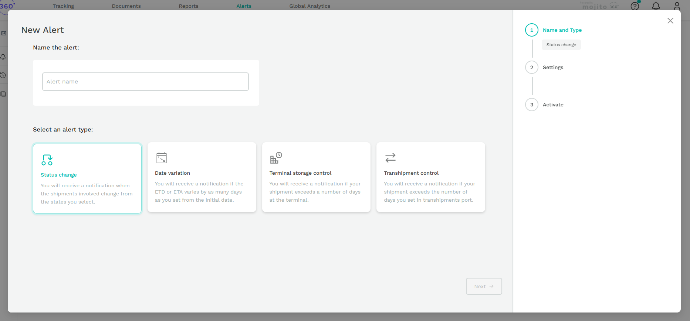
Status change
With this alert, you will receive a notification or email every time your shipments change status. For example, from in transit to arrived. You will be able to choose yourself the states for which you are interested in receiving the alert.
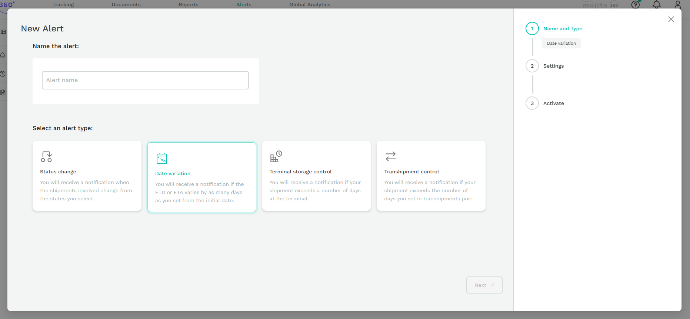
Variation of dates
With this alert, you receive a notification every time your shipments have any variation in both the ETD and ETA.
Here you can choose how many days the variation should be for the alert to be activated.
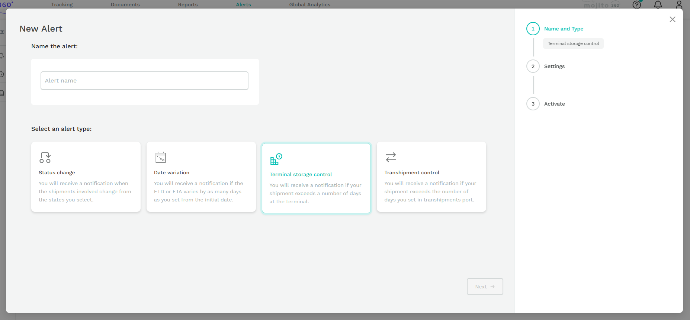
Storage control in terminal
With this alert, we will notify you if your shipment remains stored at the port for too long.
You can configure the days you want to pass before receiving the notification.
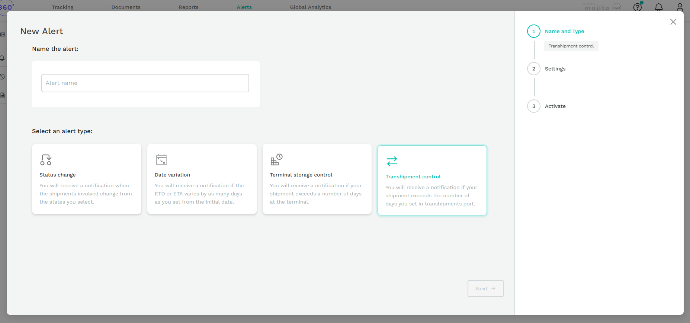
Transfer control
With this alert, you can control the time your shipments spend at transfer ports.
We will notify you if your shipment is stopped for more days than you indicate when creating the alert.
Are the alerts just for me or can I share them?
Any of the 4 types of alerts can be shared with other people. You can configure them on the last screen of the alert configuration, in the email option where a check to share appears.
You have two options “To” and “BCC”.
With the “To” option, this notification will be sent in a single email to all the people you name, while, if you put the addresses in “BCC”, an email will be sent to each account separately.
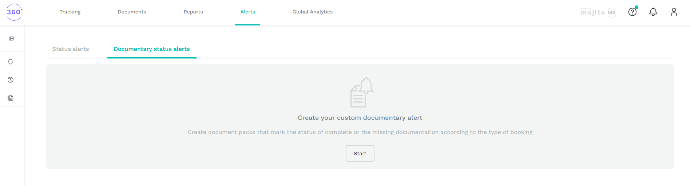
How do I know what documentary status my shipments are in?
With the document flaps, you will know which documents are already uploaded to Mojito360.
We will notify you when all the documents necessary for a shipment are uploaded and/or we can also notify you if any are missing.
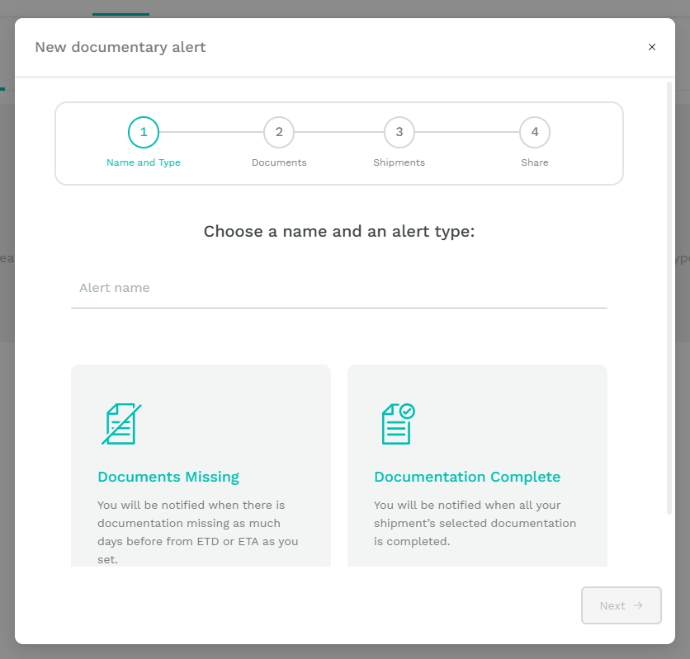
Full documentation
With this alert you can receive a notification when all the documents necessary for a shipment (HBL, packing list, etc.) are already uploaded to Mojito360. Additionally, if you have the notification activated via email, you will receive the documents attached.
Documents are missing
In this alert, you can determine according to the ETD or ETA a notification that will alert you if there are missing documents to attach to the shipment. You can set the alert to be set several days before the ETA or several days after the ETD.
What does the Documentary Pack consist of?
With this type of alert you will not receive any notification. However, a new column will appear that will be added to the tracking module. Thus, in a very visual and simple way you will be able to see if the documents you have selected for shipments are available or not. If they are available, a green box will appear and if they are not, a red box will appear.
Calendar
What do I see in the Calendar?
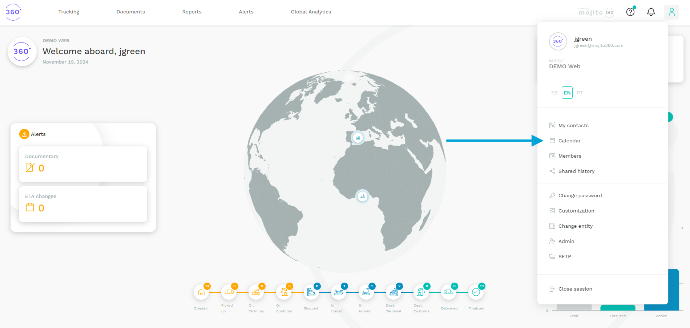
In this tab on the main page or home, you can see the status of your shipments on a calendar.
Choose the monthly, weekly or daily view, to consult them in the way that is most comfortable for you.
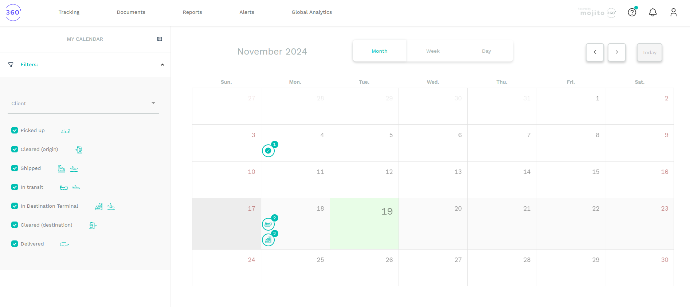
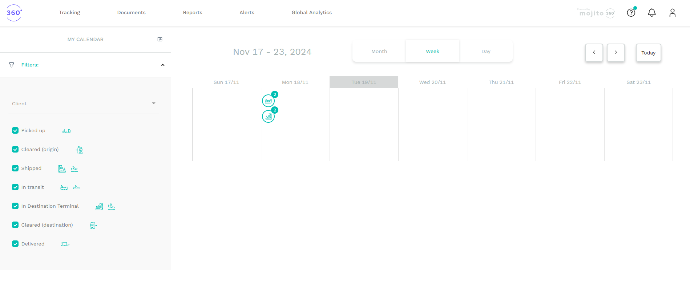
To see the information about a specific shipment, click on the calendar icon you want and the information related to that shipment will be displayed:
Weekly view:
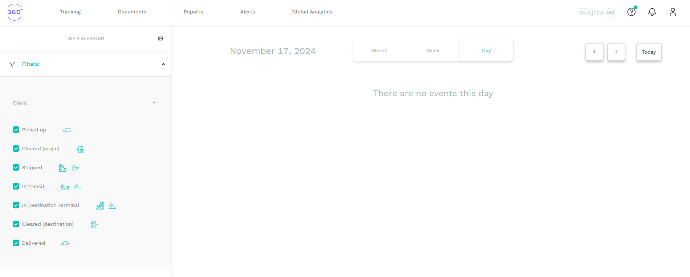
In the daily view, you'll see more relevant information about the shipment on the day you have chosen:
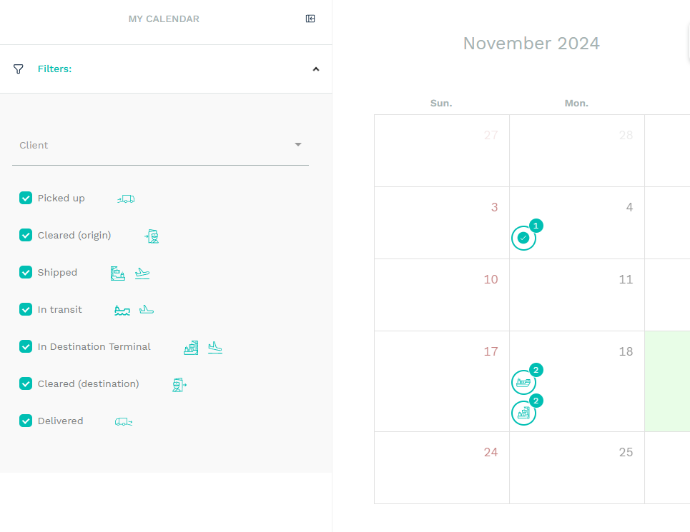
Also in the calendar, you can filter the shipments you want to see based on their status:
- Picked up
- Dispatched (origin)
- Embarked
- In transit
- At destination terminal
- Dispatched (destination)
- Delivered
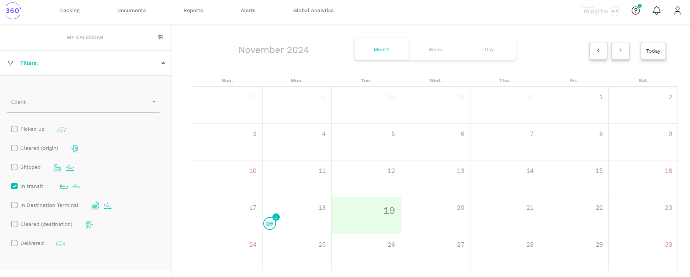
According to the indicated filters, we'll also show you the shipments on the calendar by month, week or day:
Change of password
How can I change my Mojito360 password?
Display the menu that you will see at all times in the upper right part of the screen and click on “Change password”.
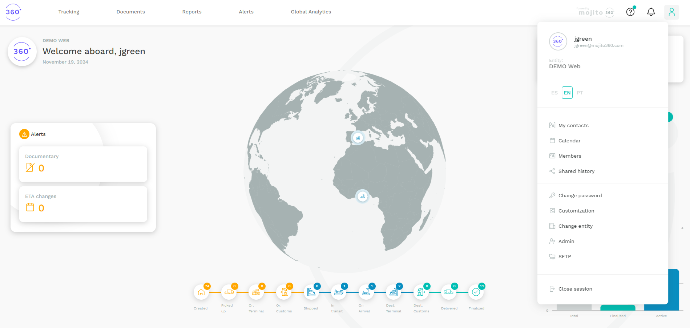
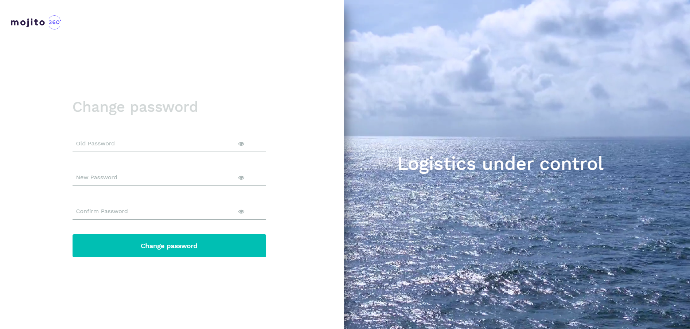
Once inside, you just have to type your current password and the new one (twice), click “change password” and voilà.
You can now access Mojito360 with your new password whenever you want.
Tickets
How can I report an incident to Mojito360?
Through the “Ticket Management” section you can inform us of any incident you have within the platform.
If you detect any errors in any data in your shipments, when uploading documents, generating reports, etc., contact us through 'Ticket Management' and we will get to work to resolve it as soon as possible.
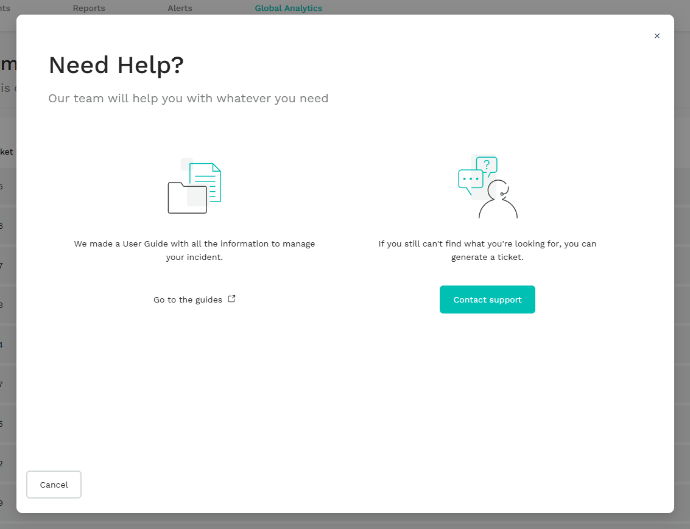
It is as simple as clicking on “Ticket Management” found in the help menu, as we show you in the image (at all times in the upper right corner within Mojito360).
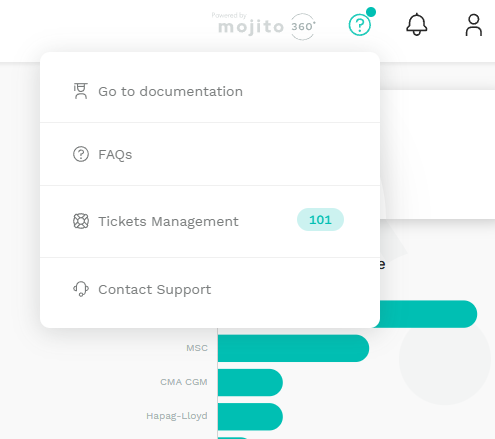
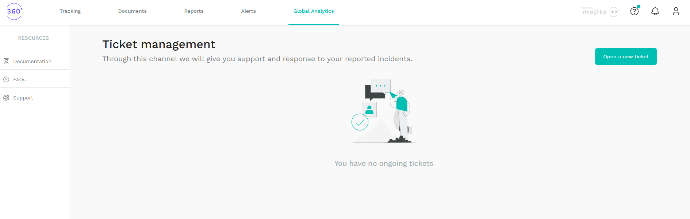
Once inside, you just have to open a ticket.
On this same screen you can always see the tickets that are being managed or have already been closed once resolved.
To ask a question, do I have to create a ticket?
At Mojito360, we invite you to review the platform manuals at any time, as they can be very useful to resolve any questions about its operation immediately.
However, if there is still something that is not clear to you, don't be left wondering!
Contact us and we will be happy to assist you.
How do I create my ticket?
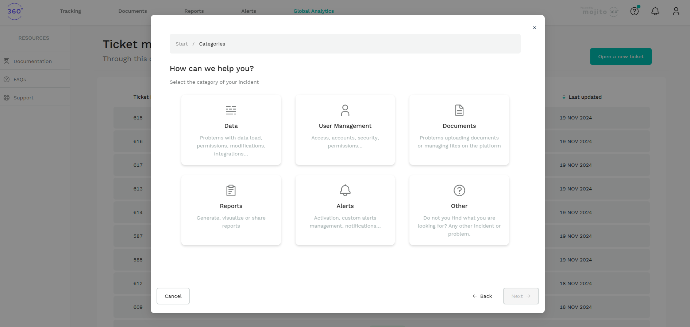
On this screen you can select the category of your incident. It is important for us that you select the subject of the incident, so that the appropriate person to resolve it receives it directly and we can give you a solution much faster.
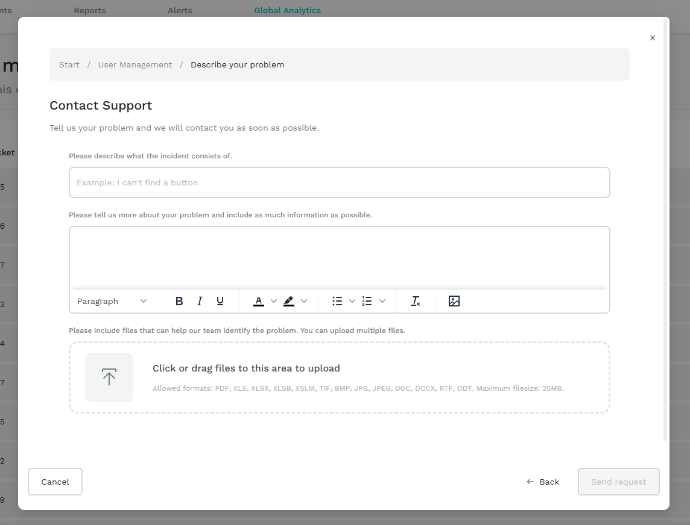
Once you have indicated the topic, you will access the screen where you can detail your incident.
Write everything you need and even attach files if it helps you explain it to us better.
How do I know what status my ticket is in? Can I follow up on the case?
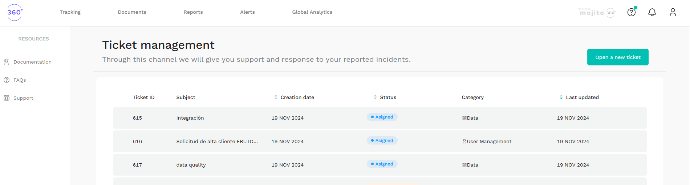
On the “Ticket Management” page, you can see all your tickets whenever you want. It doesn't matter if they are open or already closed.
You can see the date you created them, when they were last updated, and what status they are in.
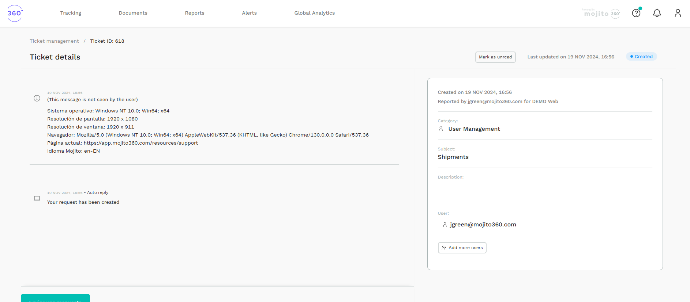
I forgot to add something. Can I provide more information once the ticket has been created?
Of course!
You can access your tickets at any time and add all the information you need, as well as attach new files.
On that same screen, we will respond to you and ask for more information if we need it to resolve the incident that you indicate.
How do I know the ticket has been updated?
Every time we update your ticket and therefore its status changes, we will send you an email to notify you that you can enter Mojito360 to see the news about the resolution of your incident.